This article addresses common questions and technical issues that may arise when using the CareerOS Internship Agreements feature.
Q: What is the purpose of the internship agreement?
A: The agreement is a legally binding document that formalizes the internship and outlines the roles and responsibilities of the student, the company, and the university.
Q: How is the internship agreement process handled in CareerOS?
A: Our secure platform digitizes the traditional paperwork, making it faster and easier for students, universities, and employers to collaborate, fill in details, and sign the final agreement. The entire workflow is automated, collaborative, and designed to keep all parties informed from start to finish.
Q: Does the student find an internship on the platform?
A: No, this process starts after a student has already found an internship. This workflow is for formalizing the agreement. (Note: This may vary for some schools.)
Q: Can I modify an agreement after it has been submitted?
A: Yes. If a change is needed after submission, the university can send the agreement back for modifications. You will receive a notification to update your information.
Electronic Signatures
Q: What is an Advanced Electronic Signature (AES)?
A: An AES is a highly secure digital signature that meets strict legal standards. It uniquely links the signature to the signer, verifies their identity, and creates an unalterable link to the document, ensuring full legal compliance.
Q: How does CareerOS satisfy the Advanced Electronic Signature (AES) requirements?
A: The platform fulfils the following core requirements for an AES signature:
Uniquely Identifying the Signer: Each user is identified by their university or corporate email address and must be logged in to sign.
Verifying Identity: Users must verify their email address before signing any document.
Binding the Signature: The system creates a digital fingerprint of the PDF's content. Any change to the document after signing will break this link, indicating tampering.
Maintaining an Audit Trail: A permanent record is kept of the signature process, including the exact time and a unique user ID, which cannot be altered.
Preventing Replay: Documents can only be signed once by each party, and the system enforces a specific order of signature.
Troubleshooting & Support
Q: The system isn't allowing me to proceed. What is the most common reason?
A: The most common cause of delays and inability to proceed is an incomplete form. Always double-check that all required fields are filled out.
Q: What if I have questions or need technical support?
A:
Students: For questions about academic requirements or agreement content, contact your university's career services office.
Universities & Employers: For technical issues with the platform, contact the CareerOS support team through our help portal.
Advanced tips
How Internship Agreements Work in CareerOS
CareerOS streamlines internship agreements with a secure, digital, and legally binding workflow.
The Internship Agreements feature on CareerOS streamlines the process of formalizing student internships by digitizing the traditional paperwork between universities, employers, and students. Instead of managing multiple physical forms and signatures, all parties can collaborate on a secure online platform that guides them through completing required details, approving terms, and signing the final agreement. This ensures compliance, reduces delays, and provides a transparent, legally binding framework that clearly defines each party’s responsibilities from start to finish.
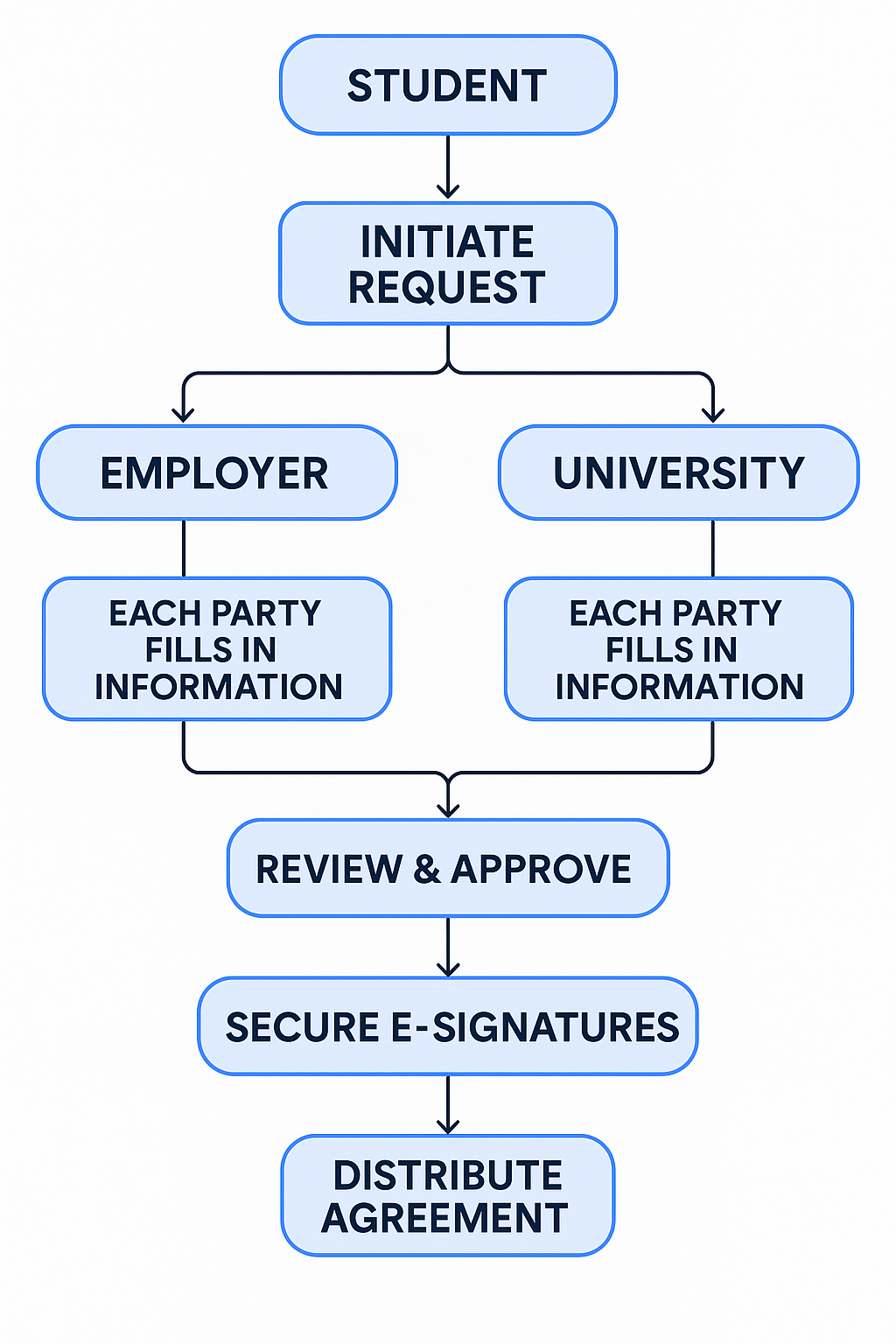
The workflow is a seamless journey from request to signature. The process starts with the Student, who initiates the request. The system then automatically notifies the University and the Employer via email. Each party fills in their required information and reviews the document. The university plays a central role in approving the details and coordinating any necessary changes.
Once all information is verified and approved, the final document is routed for secure electronic signatures, typically from the employer, then the student, and finally the university. Upon completion, the fully signed agreement is automatically distributed to everyone.
Internship Agreement Flow
For Students
The Student App is your central hub for initiating and tracking the proces.
Start the Request: Log in to your CareerOS Student Account. Navigate to the Services section and select "Internship Agreements" to start a new request.
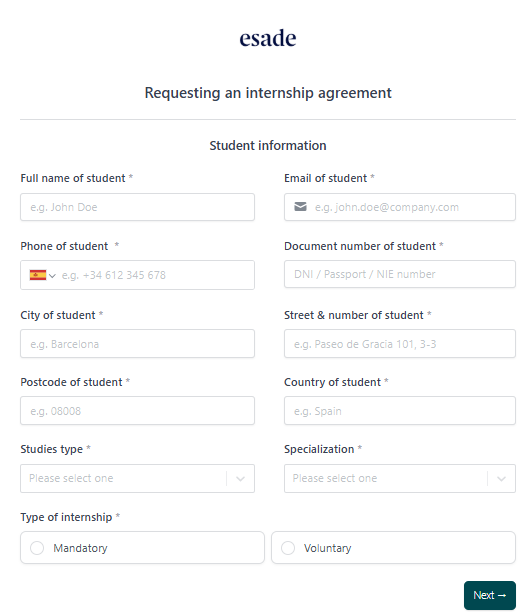
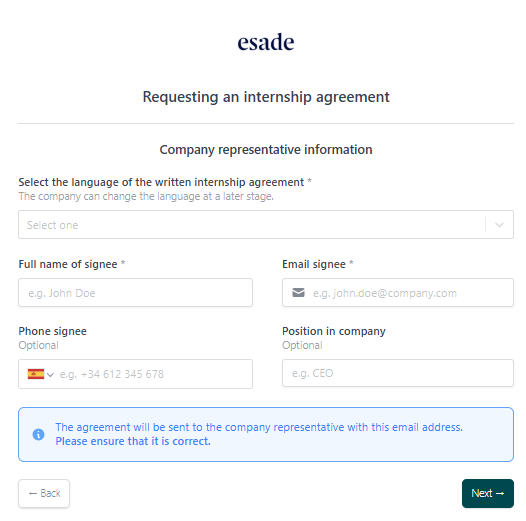
Fill in Your Details: Complete the form with your personal and academic information, including the company representative's details.
Track Progress: Monitor the status of your agreement directly from your CareerOS dashboard. You'll receive real-time updates as your university and employer complete their sections and provide their signatures.
Provide Your Signature: Once all parties have completed their sections and the university has approved the details, you will be prompted to review and sign the official agreement digitally.
Student fills personal info.
Student fills language and company representative info.
For Universities
Your role is to act as the central decision-making authority for all internship agreements.
Receive and Review the Request: You will receive an automated notification for a new internship agreement request. Access the request through your University dashboard to review all the details provided.
Approve or Request Changes:
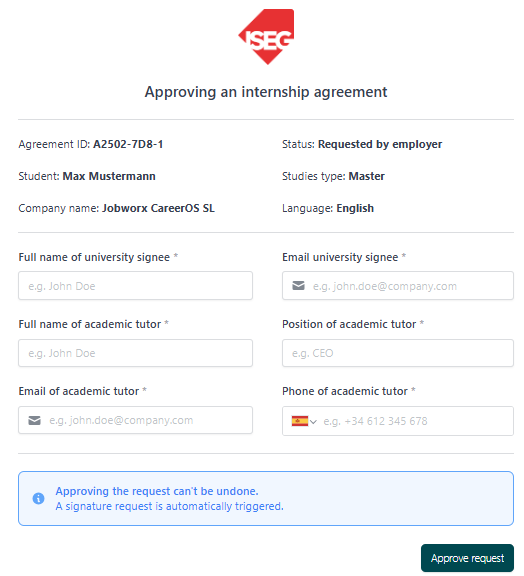
Approve: If all information is correct, you can approve the agreement. This triggers the next step in the workflow, moving the agreement toward final signatures.
Request Changes: If any information is incorrect or missing, you can send the agreement back to the student or employer for modification.
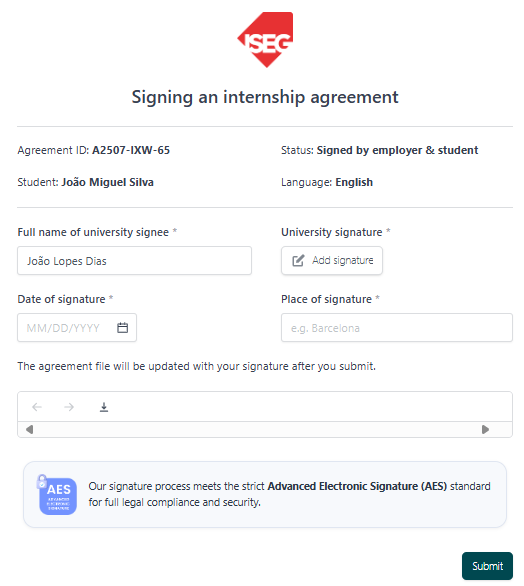
Provide Your Signature: Once all details are finalized, and the student and employer have signed, you will be prompted to provide your digital signature.
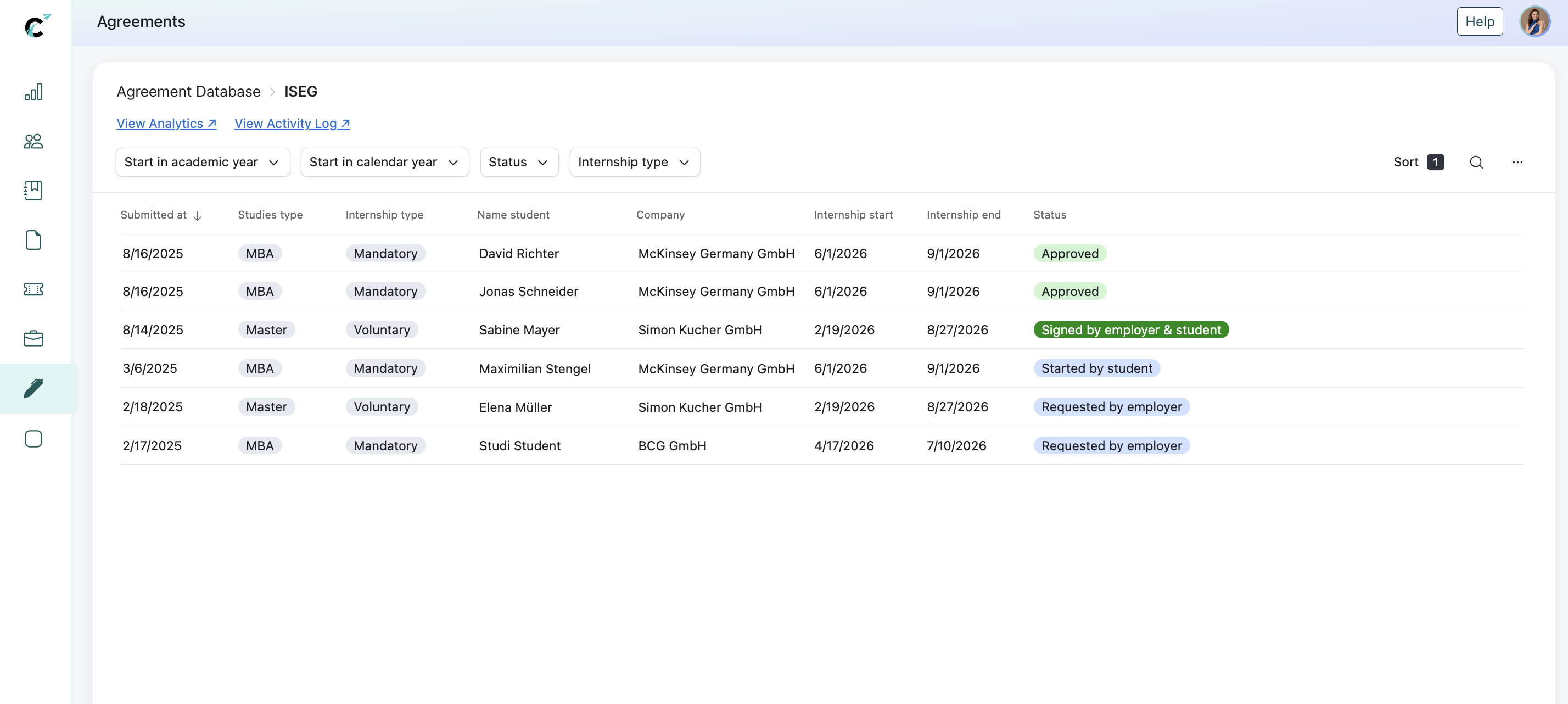
Internship Agreements Dashboard
Universities approves requests.
University requests modification
University signs the agreement
For Employers
Your participation is crucial to finalizing the agreement. You will be responsible for completing the company's information and providing the final signature.
Receive the Invitation: You will receive an automated email invitation to complete an internship agreement. Follow the link in the email to access the agreement form.
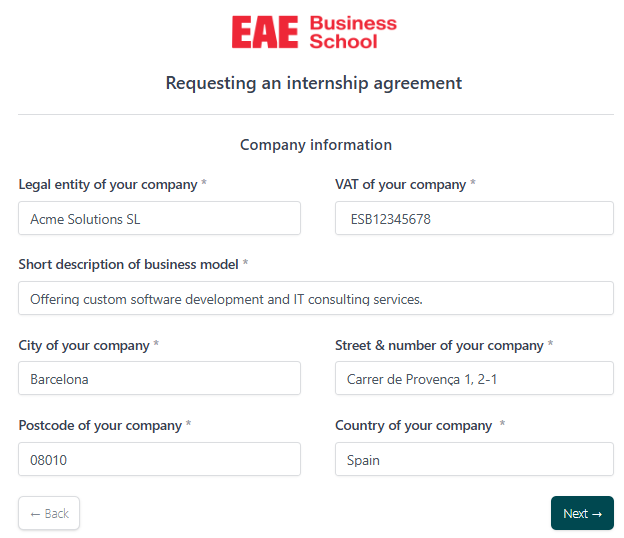
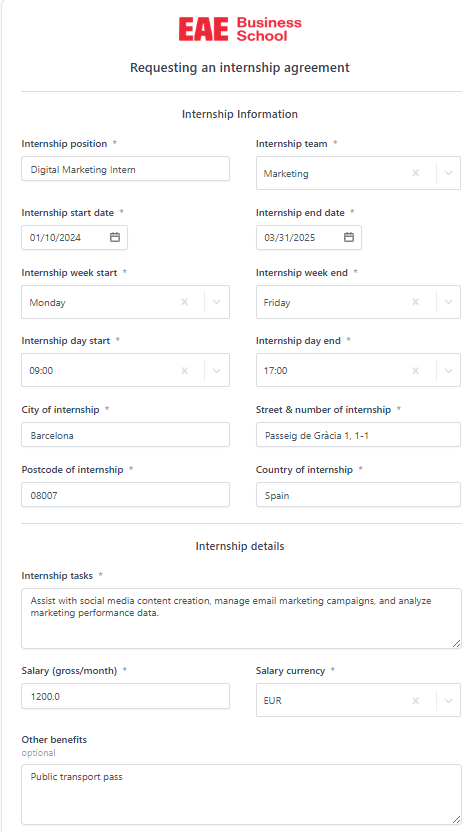
Fill in Company Details: The form will guide you to fill in your company’s information, including the company address, internship supervisor, and a brief description of the internship tasks. You can also select the language for the form and the final agreement.
Provide Your Signature: Once the student and university have completed their sections, you will review the information. If approved, you will be prompted to sign. The signing process follows a specific order: the student signs first, then you (the company representative), and finally the university.
Receive the Final Document: Once all parties have signed, you will receive a final, fully executed copy of the internship agreement via email.
Company fills info.
Internship info.
Signee info.
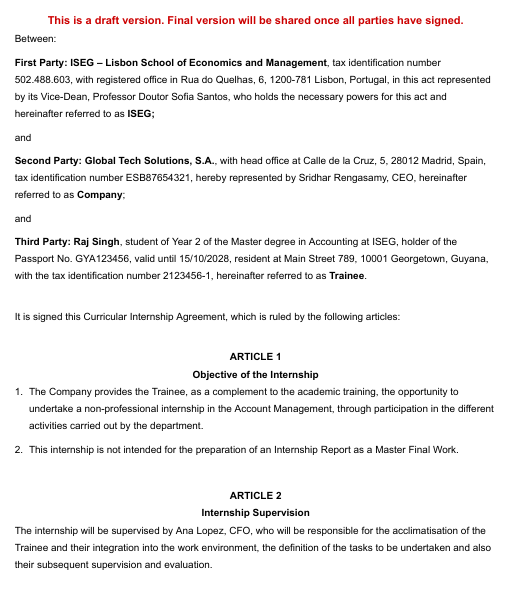
Draft document sent for review and signature to each party
If you want to learn more, click below to find Frequently Asked Questions on Internship Agreements.
Getting started
ResumeOS Guide for Career Advisors
The main features that you can leverage within the ResumeOS to support your students and streamline the resume creation process.
CareerOS ResumeOS: A Complete Guide for Career Advisors
Welcome to ResumeOS in CareerOS! This is your go-to tool for managing and tracking the resumes that your students are working on. Whether you are helping students refine their resumes or want to track their progress, ResumeOS gives you a simple and efficient way to manage resumes and assess their quality.
Let’s dive into the main features that you can leverage within the ResumeOS to support your students and streamline the resume creation process.
1. Overview: The ResumeOS Dashboard
When you log into ResumeOS, you’ll be greeted by the Resume Dashboard. Here you can see an overview of your students’ resumes. Each student will be listed with the following details:
Name: The student’s first and last name.
Base Resumes: The number of basic resumes the student has created.
Tailored Resumes: The number of resumes tailored to specific job applications.
Total Resumes: The total number of resumes the student has created.
In this dashboard, you can easily track which students are actively working on their resumes and how many tailored resumes they’ve created.
2. Resume Breakdown: Base vs. Tailored Resumes
In ResumeOS, resumes are categorized into two types:
Base Resumes: This is the foundational version of a student’s resume, typically used for general applications.
Tailored Resumes: These are customized versions of the base resume, tailored to specific jobs or industries.
Tracking the number of base and tailored resumes gives career advisors insight into how well students are preparing for specific job roles and whether they are taking the necessary steps to tailor their resumes to different employers.
3. Viewing Resume Details
When you click on a student's name or resume, you’ll be taken to a detailed page showing all the resumes that student has created. This page gives you full visibility into:
Resume Versions: All the different resumes (both base and tailored) the student has created.
Resume Quality: A score out of 100 indicating how well the resume is tailored or optimized. This helps you assess whether the student’s resume is ready for job applications or needs further work.
Resume Actions: Here, you can view, download, or comment on the resume to provide feedback.
This level of detail allows career advisors to actively monitor and support students as they develop their resumes.
4. Creating a Resume Book
One of the most powerful features of ResumeOS is the ability to create a Resume Book for your students. This feature allows career advisors to compile resumes into a cohesive book, which can be shared with employers or reviewed internally.To create a Resume Book:
Select Cohorts: Choose one or more student cohorts to include in the book.
Select Resume Template: You can choose from different resume templates that align with the university’s standards or specific job requirements.
Set Resume Quality Score: You can choose to include only those resumes that meet a specific minimum score, ensuring that the resumes being shared are of high quality.
Export the Book: Once you’ve selected the students and resumes, you can export the Resume Book for sharing or further use.
This feature is great for organizing student resumes and presenting them in a professional and streamlined manner for employers or recruiters.
5. Resume Score: Analyzing and Improving Resumes
Each resume in ResumeOS is assigned a score based on its quality. This score is an excellent indicator of how well the resume is tailored to job descriptions and whether it meets best practices in resume writing.As a career advisor, you can:
Review the resume score to quickly gauge if the resume needs further improvements.
Give specific feedback to students on how to improve their scores.
Track student progress over time as they refine their resumes.
This feature allows you to assess and guide students towards creating high-quality, job-ready resumes.
6. Resume Versions and Customization
In ResumeOS, students can create multiple versions of their resumes. Whether it’s a general base resume or specific tailored versions for different roles, ResumeOS makes it easy for students to organize and manage them.
Customize the resume for specific roles by tweaking their skills, experience, and qualifications to align with job descriptions.
Track different versions by viewing which resumes have been updated and how many tailored versions the student has created.
This allows career advisors to ensure students understand the importance of tailoring their resumes for specific job roles and industries.
7. Collaborating with Students on Resume Building
ResumeOS also supports collaboration with students. Career advisors can leave comments directly on the resumes, providing feedback or suggesting changes.
Leave Comments: Advise students on how to improve their resumes, whether it’s optimizing language, adding specific skills, or refining formatting.
Guided Feedback: Use ResumeOS to provide clear, actionable feedback that students can immediately implement.
This feature enhances the advisor-student relationship and makes resume building a collaborative and interactive experience.
8. Exporting and Sharing Resumes
ResumeOS makes it simple to export and share resumes, whether you want to send them to potential employers or share them with other departments for review.
Download Resumes: Advisors and students can download resumes directly from the platform for external use.
Share with Employers: Create a Resume Book that contains the top resumes from your students and share it directly with employers or recruiters who are looking for candidates.
This functionality ensures that your students' resumes are easily accessible and can be quickly shared when opportunities arise.
9. Next Steps: Maximizing the Use of ResumeOS
Career advisors can leverage ResumeOS to provide comprehensive support to students in their job search journey. By regularly reviewing resume activity, providing tailored feedback, and tracking student progress, you’ll ensure your students are presenting their best selves to employers.Additionally, consider:
Organizing resume workshops for students to improve resume quality.
Setting resume quality goals for students to meet before applying for jobs.
Using Resume Books to showcase student resumes to potential employers at career fairs or hiring events.
With ResumeOS, career services teams have the tools they need to help students create standout resumes and build successful career paths.If you have questions about ResumeOS or need further assistance, don’t hesitate to reach out to our support team. We’re here to help!
Getting started
Contacts Book Guide
A walk through the features and explanation on how you can make the most of this tab to help your students
CareerOS Contacts Book: A Complete Guide for Career Advisors
Welcome to the Contacts Book in CareerOS! This is your central hub for managing the connections your students are making with potential employers, as well as building your own professional network. The Contacts Book allows you to view, interact with, and track employer connections to ensure your students are engaging effectively with the right people in their career journeys.
Let’s walk through the features and explain how you can make the most of this tool to help your students succeed.
1. The Contacts Book Overview
When you open the Contacts Book, you’ll see a list of contacts that your students are interacting with, as well as potential connections you can make with active employers. The main sections of the page allow you to:
Search for contacts by name, company, alumni status, or industry.
Filter contacts by criteria such as alumni, HR/recruiters, and industry to refine your search.
View contact profiles to see details about the company, the contact’s role, and their responsiveness rate.
This is a great way for career advisors to monitor student engagement with employers, track who’s most active, and even initiate your own outreach to key connections.
2. Search Bar and Filters
At the top of the Contacts Book page, you’ll see a search bar where you can search for specific contacts by their name or company. You can also filter your search by Alumni status (whether the contact is an alumni of your institution), HR/Recruiter, or Industry to find the most relevant connections for your students.
Example Search: Search for a specific contact like “Guy Hawkins” from Amazon or filter by “HR” to find professionals involved in recruitment.
These filters are an excellent way to quickly find contacts that match your current needs, whether you're looking for specific companies, industries, or professionals with a high response rate.
3. Contact Cards: What You Can See
Each contact is displayed as a card with the following key information:
Name and Current Position: The contact's name and their current role within the company.
Company Name: The organization that the contact works for, allowing you to see which companies your students are engaging with the most.
Contact Engagement: The response rate is displayed next to the contact's name. This shows how likely this contact is to respond to students or to messages. A high response rate can be an indicator of someone who is actively engaging with potential candidates.
Alumni Status: Whether the contact is an alumni from your institution or not. This can help create strong connections between students and alumni who share a common background.
Industry: The industry to which the contact belongs (e.g., Consulting, Tech, Healthcare). This is helpful to know when guiding students towards specific career sectors.
Each contact card allows career advisors to quickly evaluate which connections might be most valuable to students, especially those with high engagement rates or relevant industry experience.
4. Contact Profile: Detailed View
When you click on a contact's card, you’ll be taken to a detailed contact profile that gives you further insights into the contact’s background and how they engage with students.Here’s what you’ll find:
Summary: A short introduction about the contact, their professional background, and any additional personal information they’ve included (such as hobbies or other interests).
Languages: The languages spoken by the contact, useful for students seeking roles in specific language markets.
Work Experience: The contact’s current and previous positions, which is important for students looking for mentors in a similar field.
LinkedIn Profile: The contact's LinkedIn URL, allowing you to view their professional network and send connection requests directly.
The Contact Profile is an essential tool for students and career advisors to gain deeper insights into potential employers or mentors, making it easier to engage with them meaningfully.
One of the most powerful features in the Contacts Book is the Student Interactions section, which displays how students have interacted with each contact. This section allows you to see:
How many students have engaged with the contact.
The types of interactions (e.g., sending messages, connecting via LinkedIn, etc.).
You can even see if students have saved the contact or if they’ve initiated conversations.
Tip: This is a fantastic way for career advisors to track student engagement with key professionals, helping you identify students who might need more encouragement or support in reaching out to contacts.
6. Action Buttons: Next Steps
Each contact has an action button that allows you to:
Message the contact directly through the platform. This is a great way for career advisors to initiate conversations with companies or set up networking opportunities for students.
Save the contact to your own list for future reference.
View Interactions to see a log of all communication with the contact.
By using the action buttons, career advisors can quickly take meaningful next steps, either for themselves or on behalf of students who might need additional assistance in reaching out.
7. Save and Organize Contacts
You can save contacts to your personal contact list by clicking the bookmark icon next to each profile. This feature allows you to easily organize and access key professionals, especially those who are highly relevant to your students' career paths. Saved contacts can be accessed later through the "Saved Contacts" filter on the sidebar, helping you stay organized and easily retrieve contacts that you or your students may want to connect with.
8. Contact Engagement Insights
The Response Rate slider is an important tool that allows you to evaluate how likely a contact is to respond to student outreach. The higher the response rate, the more likely it is that the contact is actively engaging with students, which can be extremely valuable for students looking to network.Tracking the response rate helps career advisors direct students to the most responsive professionals, increasing the chances of successful networking and job placement.
The Contacts Book in CareerOS provides career advisors with the tools they need to build and maintain meaningful connections with employers and alumni. Whether you're tracking student engagement, making connections with industry professionals, or organizing saved contacts for future outreach, the Contacts Book helps you stay on top of your networking efforts and ensures students have access to the best career opportunities.
By regularly using the Contacts Book, career services teams can empower students to create impactful relationships with the right people and navigate the job search process with greater success.
If you need any help navigating the Contacts Book or have further questions, contact the CareerOS support team.
We’re always here to help you!
Getting started
Students Kanban Board Guide
Discover how to get the most out of the Students Kanban Board
Welcome to the Student Kanban Board in CareerOS, designed to help career services teams manage and track student progress seamlessly. This view offers a quick, visual snapshot of where each student stands in their career development journey, enabling you to stay organized and support students more efficiently. Let’s dive into each feature and how you can use it to support student success.
1. The Kanban Board Overview
When you access the Student Kanban Board, you’ll see a series of columns that categorize students based on their current stage in the career process. These stages include:
Inactive: Students who have yet to engage or have paused their activities.
Companies Saved: Students who have saved companies they are interested in.
Networking: Students who have started networking with industry professionals and alumni.
Applying: Students who are actively applying to jobs and tracking their applications.
This layout gives you a clear overview of student engagement levels and allows you to focus on specific groups or individuals who may need additional support.
2. The Columns: Understanding Each Stage
Inactive
Description: This section includes students who have not yet engaged with the platform or have stopped using it. You’ll notice that some of the students here may need extra motivation or guidance to begin using CareerOS.
Action: Reach out to these students and remind them of the benefits of engaging with CareerOS, such as networking opportunities and access to job resources.
Companies Saved
Description: Students in this section have saved companies they are interested in and are actively engaging with potential employers. This shows proactive behavior in exploring companies and aligning their career goals.
Action: Encourage these students to connect with their saved companies and offer assistance with crafting tailored outreach messages or leveraging networking opportunities.
Networking
Description: This section includes students who have started networking with professionals and alumni. Students here have initiated conversations and are taking the crucial step toward building their professional network.
Action: Celebrate these students' engagement and assist them with personalized messaging strategies to build stronger connections with industry professionals and mentors.
Applying
Description: Students who are actively applying for jobs fall under this column. They have entered the job market and are using the tools available in CareerOS to manage their applications.
Action: Track these students closely and offer guidance on resume optimization, interview preparation, and help them stay organized during the application process. Ensure they’re leveraging networking opportunities to increase their chances of success.
3. The Student Cards: Key Information at a Glance
Each student in the Kanban board has a card that displays key information at a glance:
Student Name and Program: This shows the student's name and the program they are currently enrolled in.
Progress Indicators: Each student card shows the stage they are in, which corresponds to the column (Inactive, Companies Saved, Networking, Applying).
Action Buttons: You can click on the three-dot menu to access additional actions for the student, such as viewing detailed activity logs, making notes, or connecting with the student directly.
4. Search and Filters
At the top of the Kanban board, there is a search bar where you can look for students by name or email. You can also filter the view to show specific tags, such as students from particular programs (e.g., MBA25, MBA24). This allows you to narrow down your focus to students who may require immediate attention or support.5. Export and Collaboration
Export Student Data: At the top-right of the page, you will find the option to export student data. This allows you to create a report that you can share with your team, track progress, or analyze trends within the student base.
Collaboration with Other Advisors: If you have multiple career advisors on the platform, you can use the filters to show only students assigned to you or your team, ensuring that you’re working with the right group of students. You can also collaborate by leaving comments or assigning follow-up tasks to team members.
6. Additional Features
Real-Time Updates: The Kanban Board is updated in real-time, which means you can track students’ movements through the different stages as they engage with CareerOS. It’s an intuitive, interactive way to stay updated on the progress of all students.
Drag-and-Drop Functionality: You can drag and drop student cards between columns as their status changes. This helps you keep track of student progress visually and update their status quickly without having to open each individual profile.
The Student Kanban Board in CareerOS is designed to give career services teams a comprehensive, visual overview of student engagement and progress. By providing a centralized space to track and manage student activity across different stages of the job search process, CareerOS empowers career advisors to offer personalized support and drive better outcomes for students.Whether you’re helping students network with industry professionals, guiding them through job applications, or encouraging them to take the first step toward using CareerOS, this tool gives you everything you need to effectively manage student engagement and ensure their career success.If you need any help navigating the Student Kanban Board, feel free to reach out to us through the Help Center, or get in touch with the CareerOS support team for assistance!
Welcome to the Career Advisors Dashboard in CareerOS! This platform is designed to help you easily manage and track your students' career development. Let’s take you through each section of the dashboard so you can make the most of the available tools and features.
1. The Login Page
When you log in to CareerOS, you’ll land on the Career Advisors Dashboard. This is your central hub where you can track student progress, engage with students, and monitor career service effectiveness. Everything you need for career services management is just a few clicks away!
2. Navigation Bar
On the left side, you will find a vertical navigation bar that gives you quick access to several key features:
Analytics: View insights and trends related to student activities and company engagement.
Industries: Explore industry data to understand what sectors students are interacting with.
Companies: Review which companies are most engaging with your students.
Jobs: Access job-related data and job search activity.
Help Center: Direct access to resources and support if you need help using CareerOS.
Profile: Manage your personal settings and log out.
3. Dashboard Overview
The main section of the dashboard provides you with a bird’s-eye view of key data and performance indicators. Let’s break down what each of the sections shows:
- Student Networking Overview
This section visualizes the percentage of students who have initiated conversations with contacts in CareerOS. It’s a simple yet effective metric for tracking how engaged your students are with the platform.
You’ll see a pie chart with two categories:
Networking (blue): Percentage of students actively networking.
Not Networking (purple): Percentage of students not networking.
Tip: This is a great tool to measure overall engagement with the networking features of CareerOS and to pinpoint areas where students might need additional guidance or encouragement to get involved.
- Top Industries on CareerOS
This section displays a bar chart showing which industries are seeing the most engagement from your students. The chart shows how many students are engaging with companies in various industries.
Saved Companies: This metric shows how many companies students have saved under each industry. It gives you insight into the industries that are most popular among your student body.
Tip: Career services teams can use this data to identify industry preferences and focus on connecting students with companies or sectors they are most interested in.
Top 10 Companies Engagement
Below the industry chart, this section shows the top 10 companies that your students have engaged with the most on CareerOS. You’ll see how many times students have interacted with each company.
The bar chart indicates the level of engagement per company.
Tip: Use this data to focus your outreach efforts and foster stronger relationships with companies that are already attracting student interest. You can prioritize these companies for internship fairs, networking events, or other opportunities.
4. Additional Features and Insights
In addition to the main dashboard, there are other helpful features and tools you’ll find:
Export Student Data: This button allows you to export student data into a spreadsheet. This is useful if you need to analyze or share specific data with other stakeholders.
Search Bar: Located at the top of the dashboard, the search bar allows you to search for students by name or email. You can also filter by specific tags if you need to track students by groups or categories.
5. CareerOS Features for Career Advisors
Networking Insights: With CareerOS, you can track the progress of student networking activities, monitor which students are actively reaching out to industry contacts, and gain insights into their job search behavior.
Job Matching: Based on data, CareerOS helps students find jobs that best match their skills, preferences, and past interactions with companies.
Personalized Career Support: Career advisors can leverage the platform to offer personalized career advice to students, connect them with mentors, and set them up for networking opportunities with top employers.
6. How Career Services Teams Can Leverage Data
The data provided in the dashboard allows you to:
Monitor Student Engagement: Track how engaged students are with the platform, their networking activities, and their career progression.
Measure Success: Use insights to gauge the effectiveness of your career services, whether it’s the number of students applying to jobs, networking with employers, or finding job placements.
Improve Services: Identify which industries or companies your students are most interested in and adjust your career services strategies accordingly.
The Career Advisors Dashboard in CareerOS provides you with the insights and tools you need to track student engagement, understand industry trends, and support your students in their job search and career development. By regularly reviewing the data, leveraging AI-powered insights, and staying on top of student progress, you can ensure your career services team delivers maximum impact.We hope this guide has helped you understand how to use the Career Advisors Dashboard to its fullest potential. If you have any questions or need additional support, feel free to check out our Help Center or reach out to the CareerOS support team. We're here to help you succeed!
You can find a demo of the Career Advisor Dashboard below:
Welcome to CareerOS, the ultimate platform designed to streamline and enhance the career advising experience. Whether you're a seasoned career advisor or new to the field, CareerOS offers a suite of powerful tools to help you guide students more effectively, save time, and track progress effortlessly. Here’s an overview of the key features and benefits designed specifically for career teams:
Key Features of CareerOS
Centralized Dashboard
Overview: Access all your advising tools in one place. The centralized dashboard offers a snapshot of student activities, upcoming appointments, and key performance metrics.
Overview: Access and comment on student resumes directly within the platform.
Benefit: Streamlines the feedback process, making it quicker and more efficient to provide constructive criticism and improvements.
Read more here: How to review and leave notes on student resumes
Networking Assistance
Overview: Utilize tools to help students manage and expand their professional networks with personalized AI-driven email templates and follow-up reminders.
Benefit: Supports students in building meaningful connections, an essential component of career success.
Read more here: How to review student’s networking activity
Benefits for Career Advisors
Enhanced Student Engagement
With tools to track student progress and engagement, you can identify at-risk students early and intervene with targeted support.
Data-Driven Decision Making
Use analytics and reports to measure the effectiveness of your advising sessions and adjust strategies as needed.
Time-Saving Automation
Automate routine tasks such as appointment scheduling, follow-ups, and feedback collection, allowing you to focus on more impactful advising activities.
Improved Collaboration
CareerOS enables better collaboration within career teams through shared notes, insights, and resources, fostering a more cohesive advising environment.
Customized Student Support
Tailor your advising approach with insights from the platform’s AI tools, ensuring each student receives personalized guidance aligned with their unique career aspirations.
Want a full tour of the Career Advisor app? You can find it below.
CareerOS takes networking to the next level by providing tailored contact recommendations for each user. Leveraging a variety of factors, the platform suggests contacts who are relevant to your career goals and industry, helping you build a meaningful network that supports your professional journey. Here’s a closer look at the key elements CareerOS considers when making contact recommendations and how they enhance your networking experience.
Key Elements in CareerOS Contact Recommendations
Alumni Connections
Why It Matters: Alumni connections can be one of the most effective ways to break the ice and establish a rapport with new contacts. CareerOS identifies individuals who share an educational background with you, whether it’s the same university or specific program.
How It Works: The platform prioritizes alumni from your university, making it easier for you to reach out and leverage the natural connection you already have.
Mutual LinkedIn Connections
Why It Matters: Networking through mutual connections allows for warmer introductions and establishes trust. Contacts who share connections with you are more likely to respond positively, as they can see the shared professional circles.
How It Works: CareerOS taps into your LinkedIn network to highlight contacts who have connections in common with you. This means you can quickly identify people within your extended network who are relevant to your career goals and easily engage with them through shared contacts.
Job Titles and Relevance
Why It Matters: Relevance is key to effective networking. CareerOS considers job titles to ensure the individuals it suggests are professionally aligned with your aspirations or current job search.
How It Works: The platform scans the job titles and positions of potential contacts, matching them to the roles and industries that align with your background or career goals. This approach helps you connect with professionals in similar or aspirational positions, providing insights into the specific career path you’re pursuing.
Industry and Company Fit
Why It Matters: Building connections within relevant industries or companies can open doors to career opportunities, insider knowledge, and industry trends. Connecting with individuals who understand your field offers meaningful networking value.
How It Works: CareerOS suggests contacts based on industries you’re interested in or companies you’ve researched or saved within the platform. By recommending people from relevant sectors, CareerOS helps you grow a network that can directly influence and support your professional objectives.
How CareerOS’s Recommendations Can Boost Your Career Journey
The goal of CareerOS’s recommendations is to help you connect with people who are not just in your field but who can add unique value to your career journey. Whether you’re reaching out to alumni for mentorship, connecting through mutual LinkedIn acquaintances, or exploring industry insiders, CareerOS is designed to support and streamline your networking efforts.
By combining alumni affiliations, LinkedIn connections, job relevance, and industry alignment, CareerOS ensures that the contacts you engage with are optimized for your career growth. This curated approach makes it easier to establish valuable relationships that are more likely to lead to meaningful professional outcomes, giving you a competitive edge in today’s job market.
Getting Started with CareerOS Contact Recommendations
Ready to enhance your networking strategy? Explore CareerOS’s recommended contacts by navigating to the Contacts section and start connecting with professionals tailored to your career aspirations. Whether you’re early in your journey or looking to make strategic career moves, these contact recommendations are designed to help you every step of the way.
Getting started
How to Encourage Students to use CareerOS?
How do we help universities engage students and make students active CareerOS users?
We get it - student engagement is a crucial factor and one of the hardest challenges facing career teams. To help, we provide a comprehensive folder with pre-built content to promote careerOS within your university.
Here is a Sneak Peek of the Content:
Branded Emails and Banners: Ready-to-send materials to engage students.
Posters and Roll-Ups: Print ready materials for on-campus promotion.
Social Media Content: Graphics and posts to share online.
Flyers: Handouts to distribute to students.
User Manuals: Guides to assist students with their onboarding.
And Much More!
We see our CareerOS engagement team as an extension to your team. Our goal is to ensure students are active and engaged. Our aim to support you in promoting CareerOS effectively.
We're Here to Help
Our team is always ready to assist and provide additional support to ensure maximum student engagement. Together, we can make CareerOS an integral part of your students' career development journey.
Billing & pricing
CareerOS Demo
What is a CareerOS demo and what to expect from it
Discover the full potential of CareerOS by scheduling a personalized demo. Our demos provide an in-depth look at how our platform can enhance student engagement and streamline the job search process for your institution. Here’s what you can expect:
Comprehensive Overview: Get a detailed walkthrough of CareerOS features and benefits.
Tailored to Your Needs: See how CareerOS can be customized to meet your institution's specific requirements.
Interactive Q&A: Have your questions answered by our experts in real-time.
How to Book a Demo
Booking a demo is simple. Just contact our team to schedule a convenient time. During the demo, you’ll experience firsthand how CareerOS can transform career services at your university, improve student outcomes, and provide a competitive edge in the job market.
Why Choose CareerOS?
CareerOS offers a unique solution that goes beyond traditional job boards. Our platform integrates advanced networking tools, AI-driven insights, and personalized support to help students connect with potential employers and secure their dream jobs.
By attending a demo, you'll see how CareerOS can:
Increase student engagement and satisfaction
Enhance the efficiency of career services teams
Provide valuable data and analytics to improve career outcomes
Book Your Demo Today
Don’t miss the opportunity to explore how CareerOS can benefit your institution. Contact us now to book your personalized demo and start transforming your career services.
Getting started
Security and Privacy: GDPR & Security Practices
Discover CareerOS GDPR Compliance and Security Practices
Security & Privacy: GDPR Compliance and Security Practices at CareerOS
At CareerOS, the security and privacy of our users are of utmost importance. We are committed to protecting your data and ensuring compliance with the General Data Protection Regulation (GDPR). Our robust security practices are designed to safeguard your personal information and provide a safe, reliable platform for all users.
GDPR Compliance
CareerOS fully complies with GDPR regulations, ensuring the protection of personal data for all our users within the European Union. Our key GDPR practices include:
Data Transparency: We maintain clear and transparent policies regarding the collection, processing, and storage of personal data.
User Consent: We obtain explicit consent from users before collecting or processing their personal data.
Data Access and Portability: Users have the right to access their personal data and request its transfer to another service provider.
Right to Erasure: Users can request the deletion of their personal data from our systems at any time.
Security Practices
To protect user data and ensure the integrity of our platform, CareerOS implements a range of advanced security measures:
Data Encryption: All data transmitted between users and our platform is encrypted using industry-standard protocols.
Regular Security Audits: We conduct frequent security audits and vulnerability assessments to identify and address potential threats.
Access Controls: We use strict access controls to ensure that only authorized personnel can access sensitive data.
Data Breach Protocols: In the unlikely event of a data breach, we have established protocols to promptly notify affected users and take corrective action.
Your Privacy Matters
We are dedicated to maintaining the highest standards of privacy and security. By choosing CareerOS, you can trust that your data is in safe hands. If you have any questions or concerns about our GDPR compliance or security measures, please contact our support team. We are here to ensure your experience with CareerOS is secure and worry-free.
Billing & pricing
Sandbox Test Account for Universities
Discover more about CareerOS' trial for your university
Curious about how CareerOS can revolutionize career support at your university? We often offer "sandbox" trials so the career teams can experience the benefits firsthand before making a commitment. Our sandbox accounts are designed to give you full access to our platform, allowing you to explore its features and assess its impact on student engagement and job placement.
To learn more and start your sandbox trial, book a call with us. Our team will be happy to provide detailed information, answer your questions, and help you get started with CareerOS. We look forward to partnering with you to enhance your students' career development journey.
Billing & pricing
Pricing for Universities
Discover how CareerOS pricing works for universities
Are you interested in offering CareerOS to your students?
CareerOS charges universities based on various factors, including the size of the student body, the level of customization required, and additional features or support services needed.
Our pricing model is flexible to accommodate the unique needs and budgets of different institutions. To provide you with an accurate quote tailored to your specific requirements, we invite you to contact our team. We would be delighted to offer a detailed demonstration of our product and discuss how CareerOS can enhance your students' career development journey.
By choosing CareerOS, your university will gain access to cutting-edge tools designed to improve student engagement, networking, and job placement outcomes. Let's work together to ensure your students have the best possible resources to succeed in their careers.
Feel free to reach out to us for more information and to schedule a personalized demo and pricing consultation. We look forward to partnering with you to support your students' career success.
Getting started
How to Log In to CareerOS
How to login to CareerOS, which browser to use and which email you should use to login.
This is the link to login to your CareerOS account. We highly recommend you to use Google Chrome to use CareerOS, as with it, you will be able to download our Chrome Extension and unlock all the potential CareerOS has to offer to you.
After you click on the "Login" button, you will see a frame where you will have to type your institution. Look for the name of your university, and then, login using your university's email.


.svg)
.svg)

.png)

.png)

.png)
.png)
